Advanced Search for Absolute Beginners
Getting Started with Advanced Search
Using Advanced Search doesn't have to be complicated. With advanced-search.info, you can prepare your eBay search in just a few simple steps and access the eBay marketplace of your choice.
You don't need to install any additional software or configure complicated search settings. Simply enter your search term, select your preferred eBay marketplace, and start searching.
How Does It Work?
The search process is straightforward:
Step 1 – Enter Your Search Term
Start by entering the product, item, or keyword you are looking for in the search field on advanced-search.info.
Step 2 – Select an eBay Marketplace
Choose the country-specific eBay marketplace you want to search, such as eBay USA, eBay UK, eBay Germany, or another supported marketplace.
Step 3 – Open the eBay Marketplace
After submitting your search, you will be redirected to the selected eBay marketplace, where your search results are displayed.
Step 4 – Continue in the eBay App
If the eBay app is installed on your mobile device and the appropriate settings are enabled, you can continue your search directly in the app.
Depending on your device and eBay settings, prices and search results may be displayed in the relevant local currency and language.
Before You Start: Check Your Mobile Browser Settings
To get the best possible experience, make sure your mobile browser displays websites in their mobile version rather than their desktop version.
This is particularly important when accessing an eBay marketplace from your mobile device.
Why Is This Important?
Most websites, including eBay, offer different layouts for desktop computers and mobile devices.
The mobile version is designed for smaller screens, with appropriately sized text, buttons, menus, and search results.
If your browser is set to display the desktop version, the eBay marketplace may appear too small or require unnecessary horizontal scrolling.
Check Your Browser Settings
Before starting your first search, check whether your browser is configured to display mobile websites.
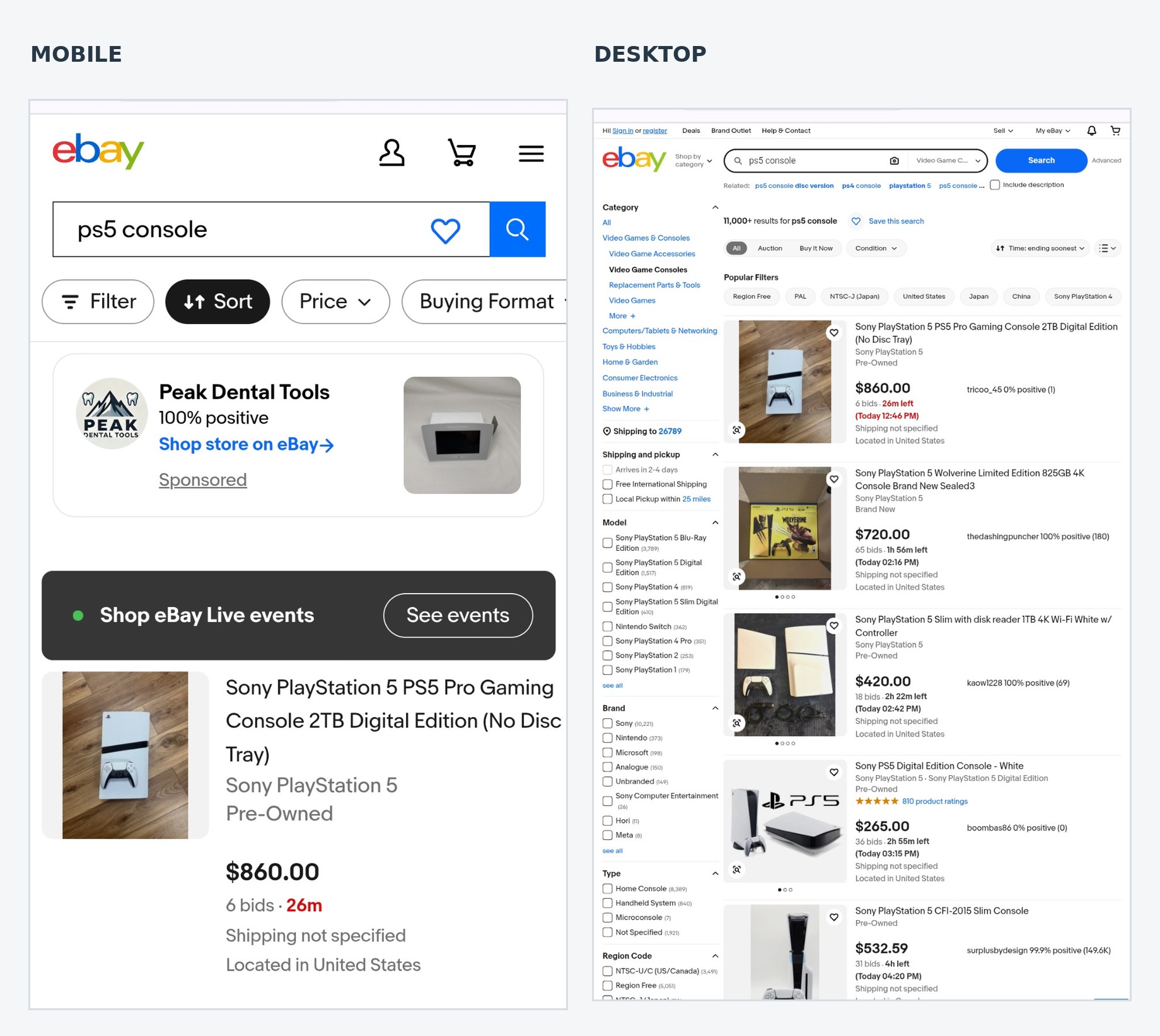
Compare the mobile (left) and desktop (right) versions of eBay's search results. Both layouts provide access to search filters, sorting options, product listings, prices, seller information, and additional search features.
Click the test link below to open the eBay.com search results page shown above.
If you see a desktop-style version of eBay on your mobile device, you may need to change this setting:
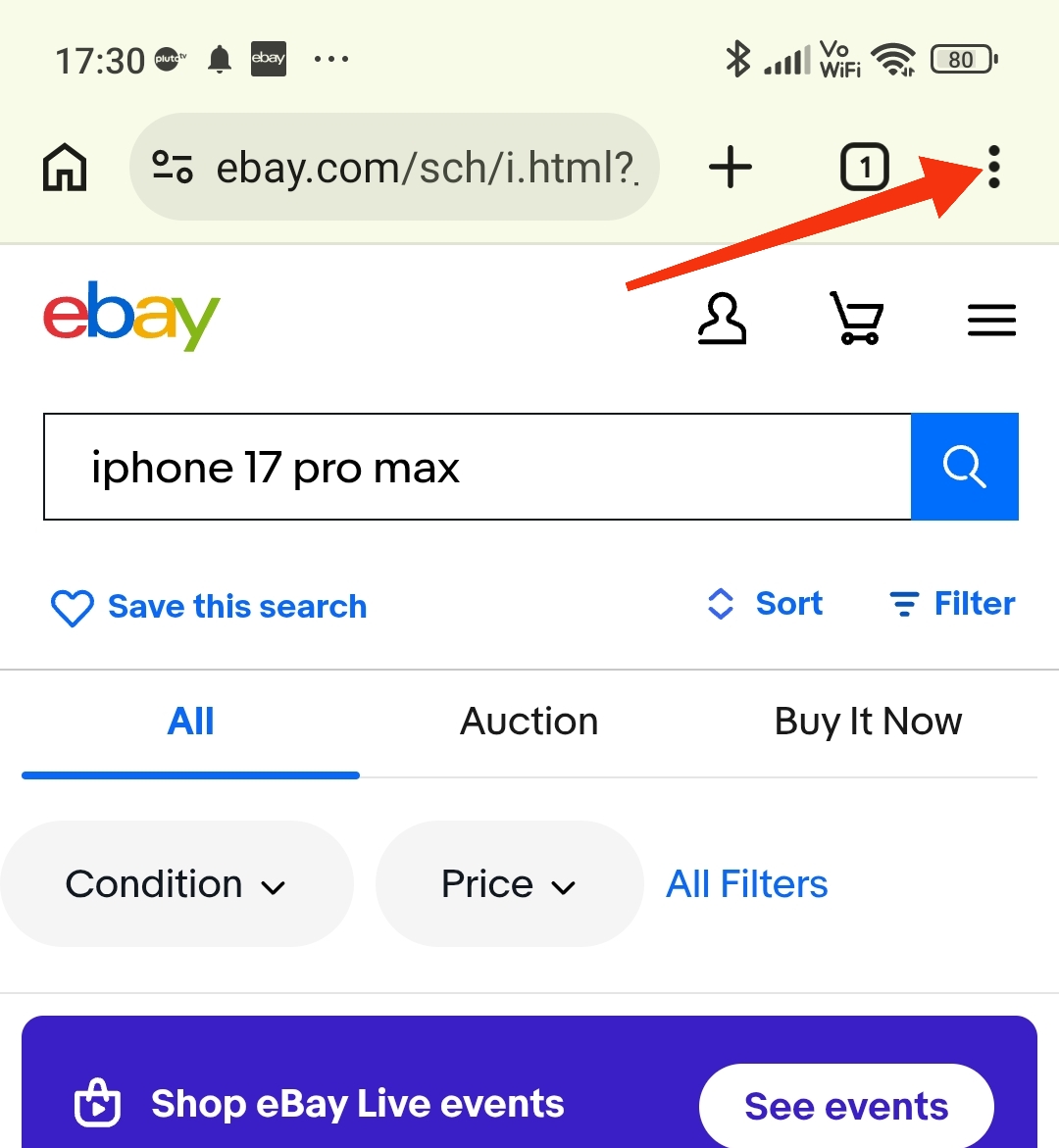
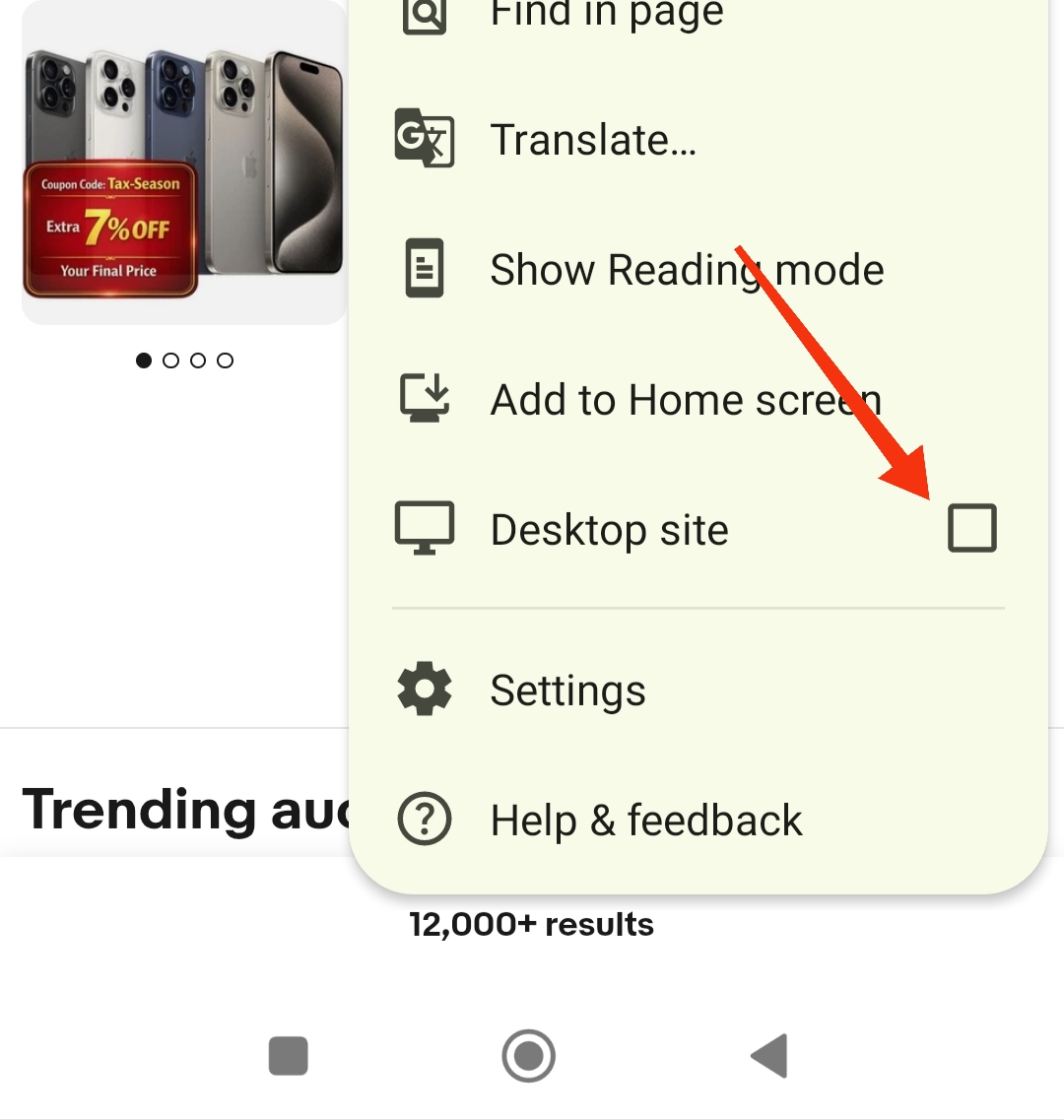
Once this option is turned off, your browser will reload and the marketplace should now display in its mobile-friendly layout.